
What is .htaccess?
An .htaccess (hypertext access) file is a simple text configuration file at the directory level for web servers, which, simply put, controls access to a certain directory on your hosting account.
.htaccess rules apply to a directory and all its subdirectories unless there are multiple .htaccess files present in subdirectories. The permissions of .htaccess should allow universal read access but write access only to the user.
.htaccess files are read on every request. Therefore, any change in these files takes effect immediately, unlike global settings that require server restart. Also, .htaccess files allow each user to set permissions for one or more directories in their hosting account.
If you want to make changes to an .htaccess file, be sure to keep a backup copy, as a slight syntax error can cause your site to display errors.
If you want to generate various commands for .htaccess, you can use this free utility: https://www.htaccessredirect.net
Accessing and Editing .htaccess from cPanel
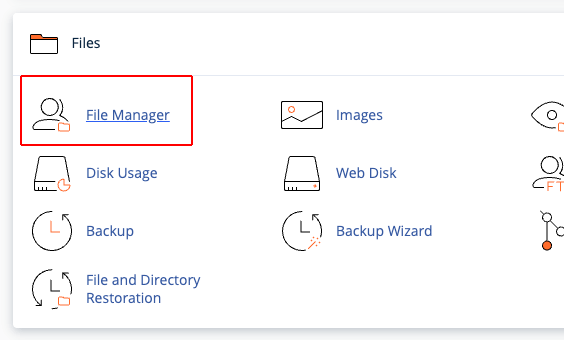
First, log into cPanel and click the File Manager button.
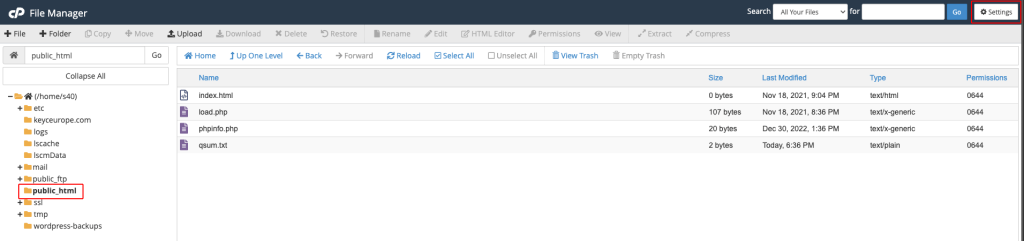
In the new page, navigate through the directories on the left to reach the desired directory and click on it. The right window should display all files contained in that directory.
If you can’t find the .htaccess file, click the Settings button at the top right to open a window as shown below. Here, check the option Show Hidden Files (dotfiles) and click the Save button.
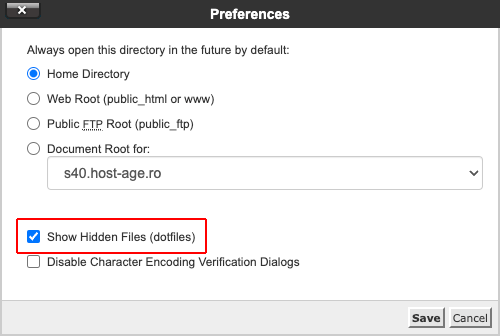
From now on, you will be able to see the .htaccess file (and any other file or directory whose name starts with a dot). You can select the .htaccess file and click the Edit button to edit it.

Accessing and Editing .htaccess from FTP Client
You can also access and download the .htaccess file from the server very easily with an FTP client (e.g., FileZilla). You just need to navigate through the desired directories and you will find the .htaccess file. Alternatively, you can create it locally on your computer and upload it to the desired directory on the server.
