
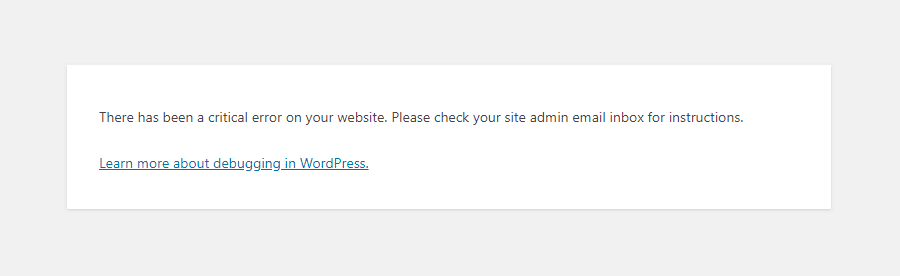
The “There has been a critical error on your website” message is one of the most common problems in WordPress. It usually occurs when a plugin or theme causes a conflict or there is a code error.
In this tutorial, you will learn how to identify the source of the problem using WordPress’s debugging mode, WP_DEBUG, and how to edit the wp-config.php file to enable this functionality.
Steps to identify and fix the problem
1. Enable WP_DEBUG
WP_DEBUG is a WordPress constant that enables displaying errors and warning messages.
How to enable WP_DEBUG:
- Connect to your server
- Use an FTP client like FileZilla or the file manager in cPanel to access your WordPress files.
- Locate the
wp-config.phpfile- The
wp-config.phpfile is in the root directory of your WordPress installation.
- The
- Download the
wp-config.phpfile to your computer- Right-click the file and choose “Download”.
- Edit the
wp-config.phpfile- Open the file with a text editor like Notepad++ or Visual Studio Code.
- Find the line:
define('WP_DEBUG', false); - If the line is missing, add the following lines before
/* That's all, stop editing! Happy publishing. */:define('WP_DEBUG', true);define('WP_DEBUG_LOG', true);define('WP_DEBUG_DISPLAY', false); - This configuration:
- Enables WP_DEBUG (
true). - Stores errors in a log file (
WP_DEBUG_LOG). - Hides errors from site visitors (
WP_DEBUG_DISPLAY).
- Enables WP_DEBUG (
- Upload the
wp-config.phpfile back to the server- After saving changes, use the FTP client to upload the file and overwrite the existing version.
2. Check the WP_DEBUG log file
- Find the
debug.logfile- The log file will be created automatically in the
/wp-content/directory if errors exist.
- The log file will be created automatically in the
- Download and open the
debug.logfile- Check the file to identify the line, plugin, or theme causing the error. For example:
[23-Jan-2025 15:00:00 UTC] PHP Fatal error: Uncaught Error: Call to undefined function example_function() in /path/to/wp-content/plugins/example-plugin/example.php:23 - In this example, the problem comes from a file in the “example-plugin” plugin.
- Check the file to identify the line, plugin, or theme causing the error. For example:
3. Deactivate problematic plugins/themes
- Connect to the server
- Navigate to the
/wp-content/plugins/directory to access installed plugins.
- Navigate to the
- Rename the folder of the problematic plugin
- If you identified a plugin causing the issue, rename its folder. For example, change
example-plugintoexample-plugin-deactivated.
- If you identified a plugin causing the issue, rename its folder. For example, change
- Test the site
- Check if the site works after deactivating the plugin/theme. If the problem persists, repeat the steps for other plugins/themes.
4. Disable WP_DEBUG after resolving the issue
Once the problem is fixed, it is recommended to disable WP_DEBUG to prevent displaying error messages.
- Edit the
wp-config.phpfile again- Change the line:
define('WP_DEBUG', true);
to:define('WP_DEBUG', false);
- Change the line:
- Upload the file back to the server
- Save and upload the
wp-config.phpfile to the server.
- Save and upload the
Conclusion
With WP_DEBUG enabled, you can quickly identify the cause of critical errors in WordPress. While the process may seem daunting at first, following these steps will help you diagnose and resolve issues efficiently.