
Attention! To use the MyCloudDNS service, the desired domain must have the following NS records:
ns22.host-age.com
ns23.host-age.com
NS records can be changed by following the steps here: https://www.host-age.com/kb/internet-domains/how-change-dns-domain/
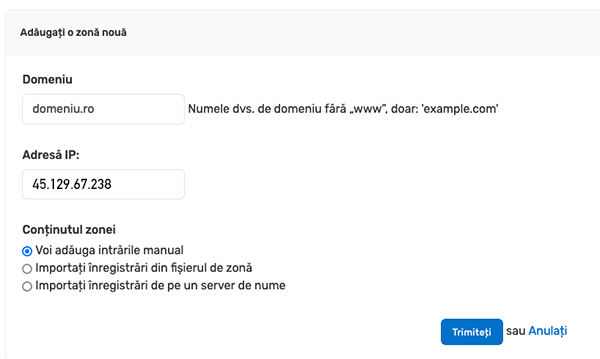
Log in to your client account at https://my.host-age.ro and add the domain under Other Services as shown in the image below, using the IP provided by your site hosting provider. In this example, we used IP 45.129.67.238.
Now find the MX Records section and click the Edit link next to your domain name.

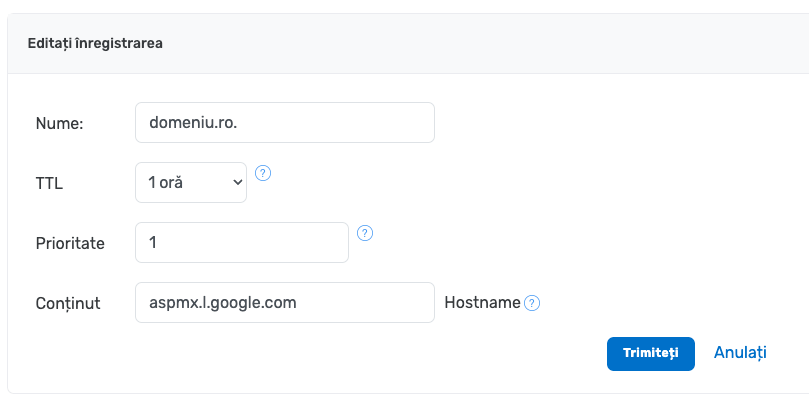
On the next page add the entry aspmx.l.google.com to the Content field and set the Priority to 1. Then click the Submit button.
Now click the Add new record button in the MX section.

Following the instructions in the image, add the following entries to your MX zone:
| Priority | MX |
| 5 | alt1.aspmx.l.google.com |
| 5 | alt2.aspmx.l.google.com |
| 10 | alt3.aspmx.l.google.com |
| 10 | alt4.aspmx.l.google.com |
From this moment, all emails sent to this domain will be delivered to Gmail servers.
Additionally, if you want, you can add the following CNAME records in the DNS zone:
mail CNAME ghs.googlehosted.com
calendar CNAME ghs.googlehosted.com
group CNAME ghs.googlehosted.com
drive CNAME ghs.googlehosted.com