All our accounts can keep a full backup of the hosting account. This is recommended as a best practice in case your content needs to be replaced or restored. For all web hosting, reseller hosting, and Business Email accounts, backups are made every night, but it is also recommended that you make backups yourself, for example, if you want to modify multiple site files or update a CMS (WordPress, Joomla, etc.).
A full backup from cPanel means a copy of all files in your account, including emails, passwords, databases, etc. Once started, the backup process can take from a few minutes to several hours depending on the account size and number of files. The server can send you an email to an address you specify once the backup is ready for download. The steps to generate, download, and restore a full backup are explained in detail below.
To generate a full backup from cPanel, follow these steps:
- Log in to cPanel at www.your-domain.com/cpanel with your username and password
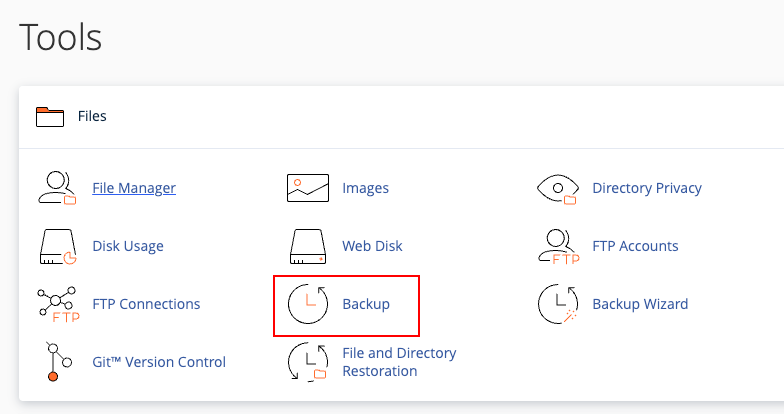
- From the Tools section, select the Backup button
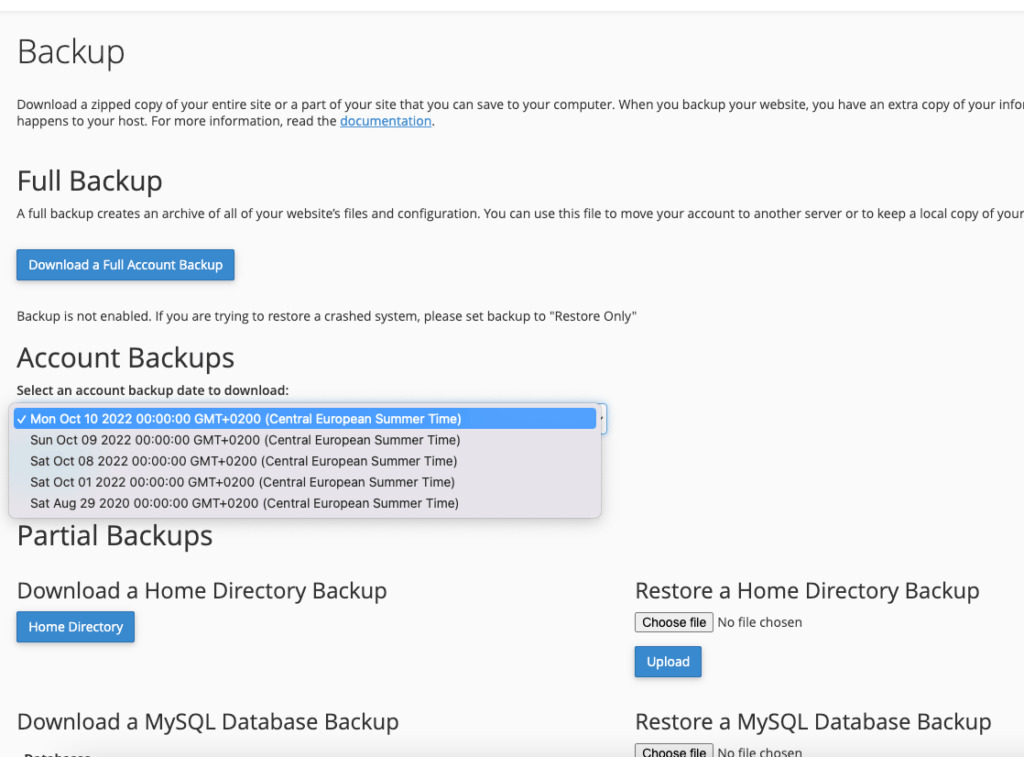
3. Click on Download a Full Account Backup to generate a full backup of everything currently in your account. Alternatively, you can choose to download a backup already generated from the available list.
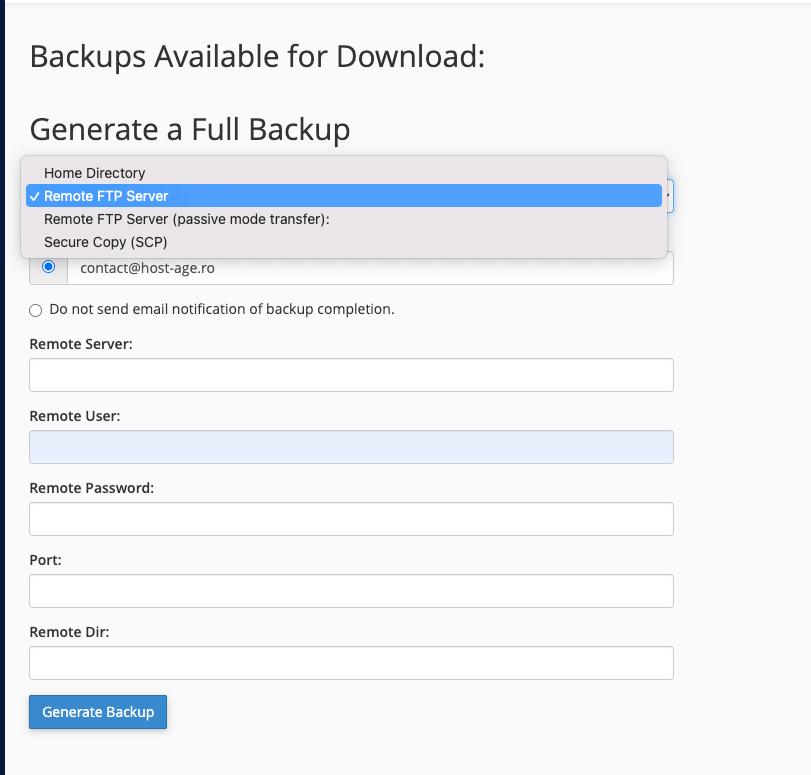
4. On the next page, choose the location where you want this new full backup to be saved. You can select your hosting account but be careful to have enough free space; otherwise, your site might stop working correctly, and email addresses might become unusable. If your free space is less than 50% of the total hosting package, we recommend contacting us to temporarily increase your account space. Alternatively, you can choose to transfer the backup via FTP to an indicated address (you will need FTP host, username, and password).
You can also specify an email address to be notified when the backup is complete.
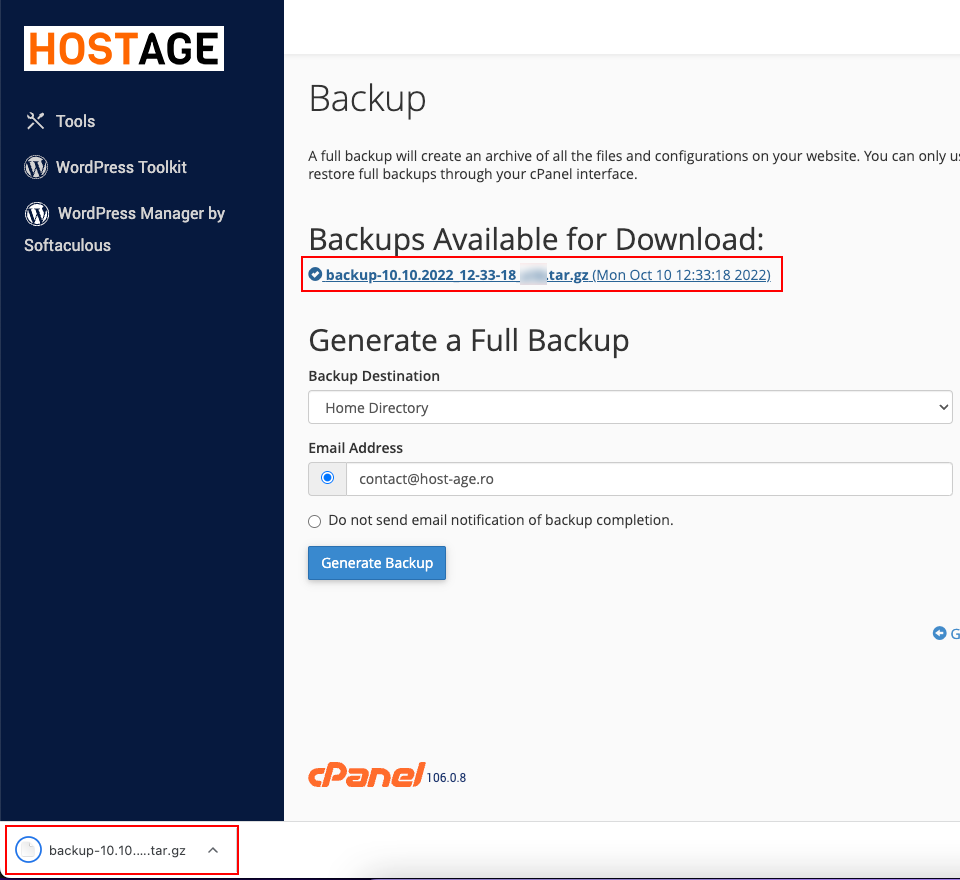
5. While the backup is running, you can monitor the status in cPanel. Even if the backup seems to take a long time, please do not start a new backup, as this will only delay the completion of the current backup.
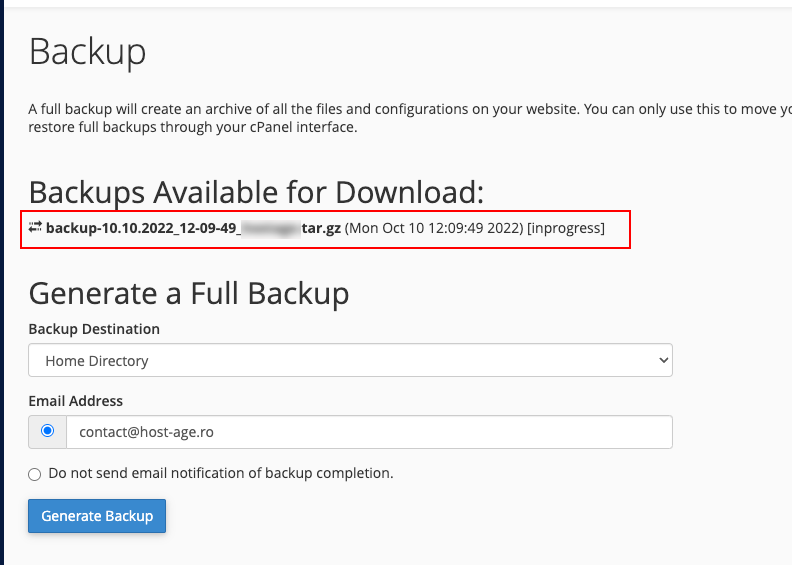
6. After the backup is complete, you can download it locally (if you did not choose to send it via FTP) by clicking the link named something like backup-date-cpanelusername.tar.gz.