
In this article, we will show you how to obtain and configure the iCloud Mail DNS records used to connect your cPanel account or by using the Hosting DNS service to the iCloud Mail service provided by Apple.
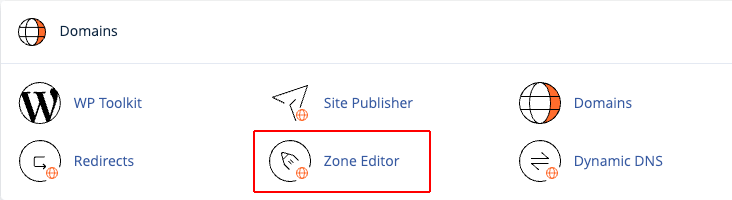
Access cPanel then click on the Zone Editor button.
Click the Manage button next to the desired domain.

Look for the MX record in the Type column and click the Edit button.

Edit the MX record by setting the Priority to 10 and the Destination to mx01.mail.icloud.com. then click the Save Record button.

On the right side of the page, click + Add Record and select Add “MX” Record.
In the Name field, enter your domain name, set the Priority to 10, and set the Destination to mx02.mail.icloud.com. then click the Save Record button.

On the right side of the page, click + Add Record and select Add “TXT” Record.
In the Record column, add the custom record provided by Apple iCloud Mail and click the Save Record button.

Look for the TXT record that starts with v=spf1 in the Destination column and click the Edit button.

Delete the record starting with v=spf1 and replace it with v=spf1 include:icloud.com ~all then click the Save Record button.

Look for the TXT record that starts with v=DKIM1 in the Destination column and click the Edit button.

Replace the value in the Name column with sig1._domainkey.your-domain.com. Replace the value in the Record column with sig1.dkim.example.com.at.icloudmailadmin.com. Then click the X next to the secondary record to delete it and click the Save Record button.

On the iCloud Mail setup page, click Confirm to finalize the configuration. It may take a few minutes for the saved changes to be verified.
To verify if the domain and addresses are configured with iCloud Mail, log in at https://icloud.com/icloudplus. Select the Custom Email Domain widget, then click Manage. If your changes are not successfully verified, check for errors in the updated DNS records and try again.
If you do not have a web hosting package at Host-Age.com and want to use the free Hosting DNS service, the instructions are similar, differing only in the web interface used to make this DNS zone editing.