
What is AccelerateWP
AccelerateWP is a set of optimization modules available for website owners using WordPress. It allows users to find and troubleshoot performance issues at both the server and application level. It is accessible from the cPanel control panel. Some available modules in AccelerateWP include:
- Site Optimization Module – an automatically implemented WordPress plugin that lets the site owner manage optimization settings for their WordPress website.
a. Page caching
b. Image caching
c. CSS and JS caching
d. Lazy loading (only display requested content)
e. Cache preloading, URL and fonts - a. Object Cache Module – advanced object caching based on Redis
b. External DB query caching
c. Large text object caching
d. Shortcode caching
Object Cache appears as a WordPress plugin customizable according to the user’s individual requirements and specific websites. You can also enable CSS and Javascript file optimization (minification of files into a single line of code for faster loading). Different loading of media resources (using lazy load technology to speed up loading only requested content). Preload cache allows background caching, useful especially during a site’s first visit. Advanced rules include fine tuning, cleaning unused/old data, WordPress Heartbeat control providing communication protocol between browser and server.
SmartAdvice offers helpful tips on how to fix a problem and effortlessly improve site performance, without requiring extensive research or development expertise. The site admin can activate an automatic tracking function running in the background analyzing site performance. You’ll be able to decide how to improve performance using SmartAdvice, which is based on PHP X-Ray findings. SmartAdvice automatically generates a suggested list of steps to improve performance and lets you use two different optimization levels to resolve issues.
Integration with existing features:
PHP X-Ray provides detailed insights into performance bottlenecks involving CMS. If a site has slow plugins, database queries, functions, or external calls, this new tool helps identify the root cause:
Identifies slow database queries
Detects slow WordPress plugins and unoptimized code
Prevents irrational use of external requests
How to Use AccelerateWP
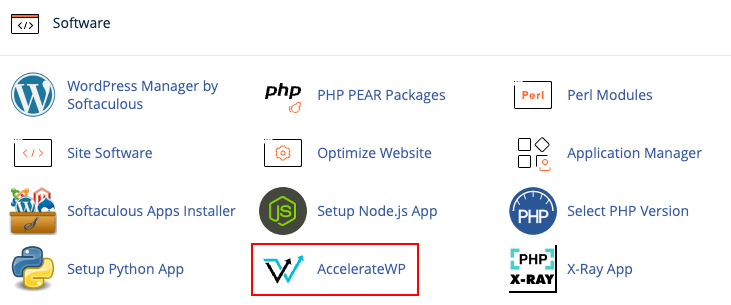
Access cPanel and look for the AccelerateWP button.
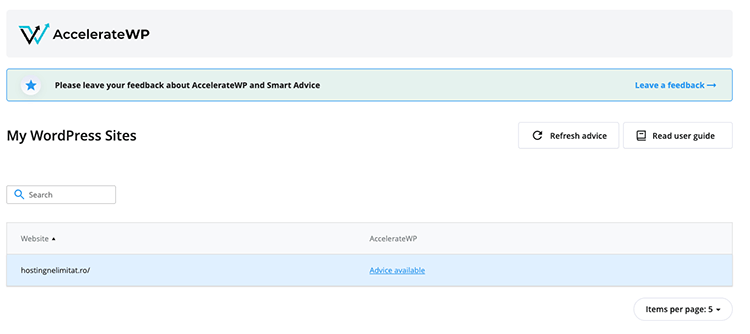
In the AccelerateWP module page, optimization instructions will appear if performance issues are detected on your installed WordPress. Click on the Advice available link. Note: AccelerateWP cannot detect potential issues if you have an active cache plugin.
Click the Activate button and wait for the process to complete.

In this case, AccelerateWP installed a very useful caching plugin. It is basically the WP Rocket plugin “rebranded”, one of the most performant caching plugins for WordPress. You no longer need to pay for it, it is included in your hosting package.
We still recommend using the LiteSpeed Cache plugin, which is the most efficient for servers running LiteSpeed. Details here: https://www.host-age.com/kb/miscellaneous/litespeed-plugins-cms/
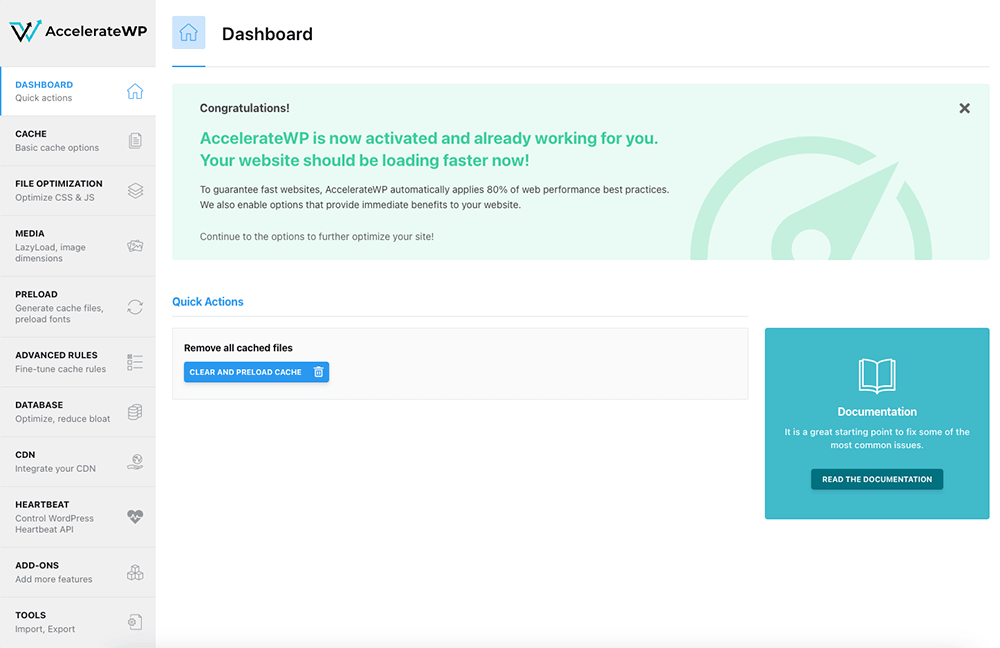
Check the optimal settings for your site; from this moment it should load much faster.
Recommendations for Configuring AccelerateWP
Our recommendation is to configure AccelerateWP as shown below. These settings have been tested on various sites hosted by us and have consistently delivered very good results.
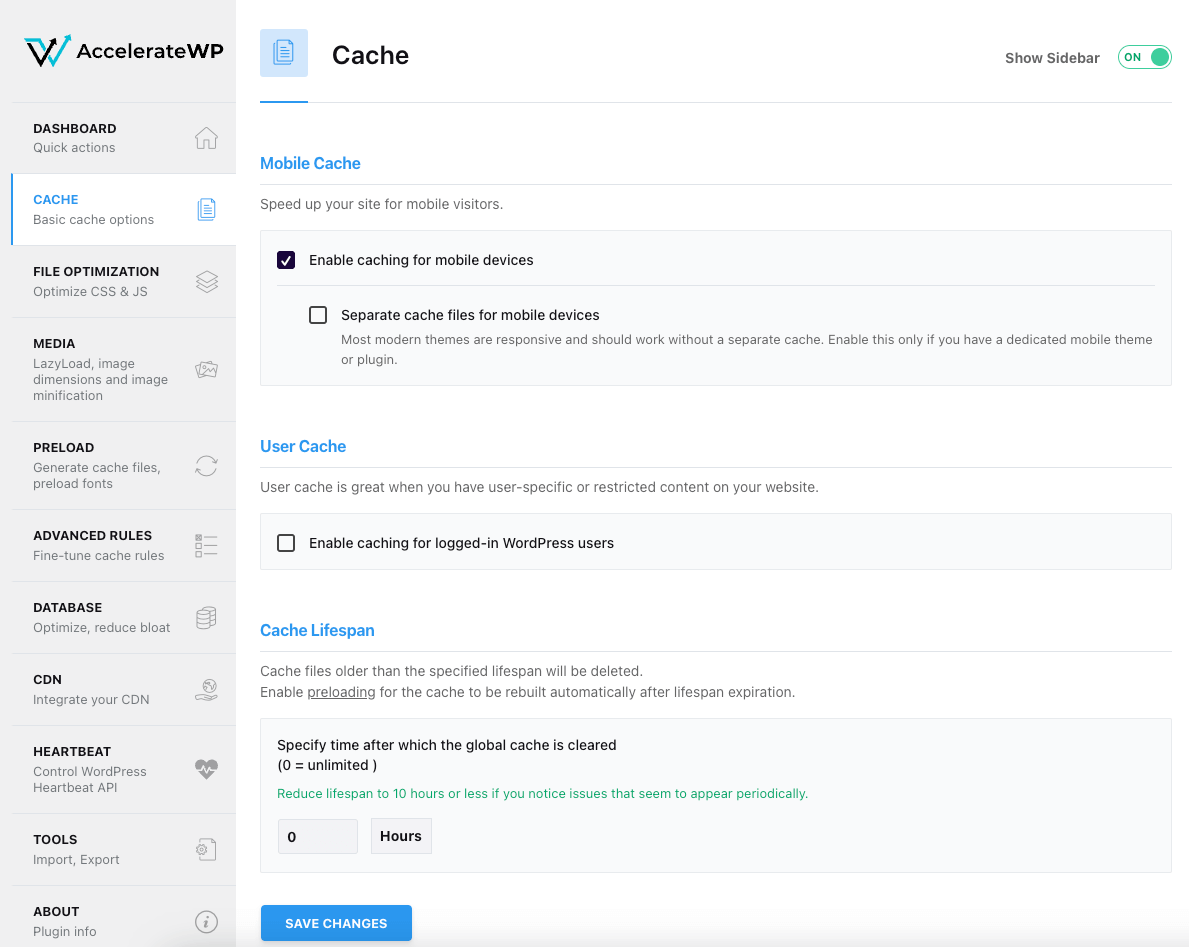
Go to the Settings section in AccelerateWP.
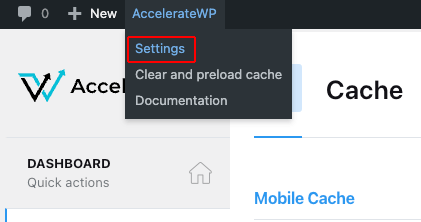
In the left menu, click on the Cache section.
Enable Enable caching for mobile devices.
For the option Specify time after which the global cache is cleared, we recommend setting 0, meaning unlimited time. When you make changes to a page, the cache will regenerate only for that page upon saving/publishing.
Click the Save changes button.
Go to the File Optimization section.
Enable Minify CSS files under CSS Files. Under JavaScript Files, enable Minify JavaScript files and Delay JavaScript execution.
Click the Save changes button.

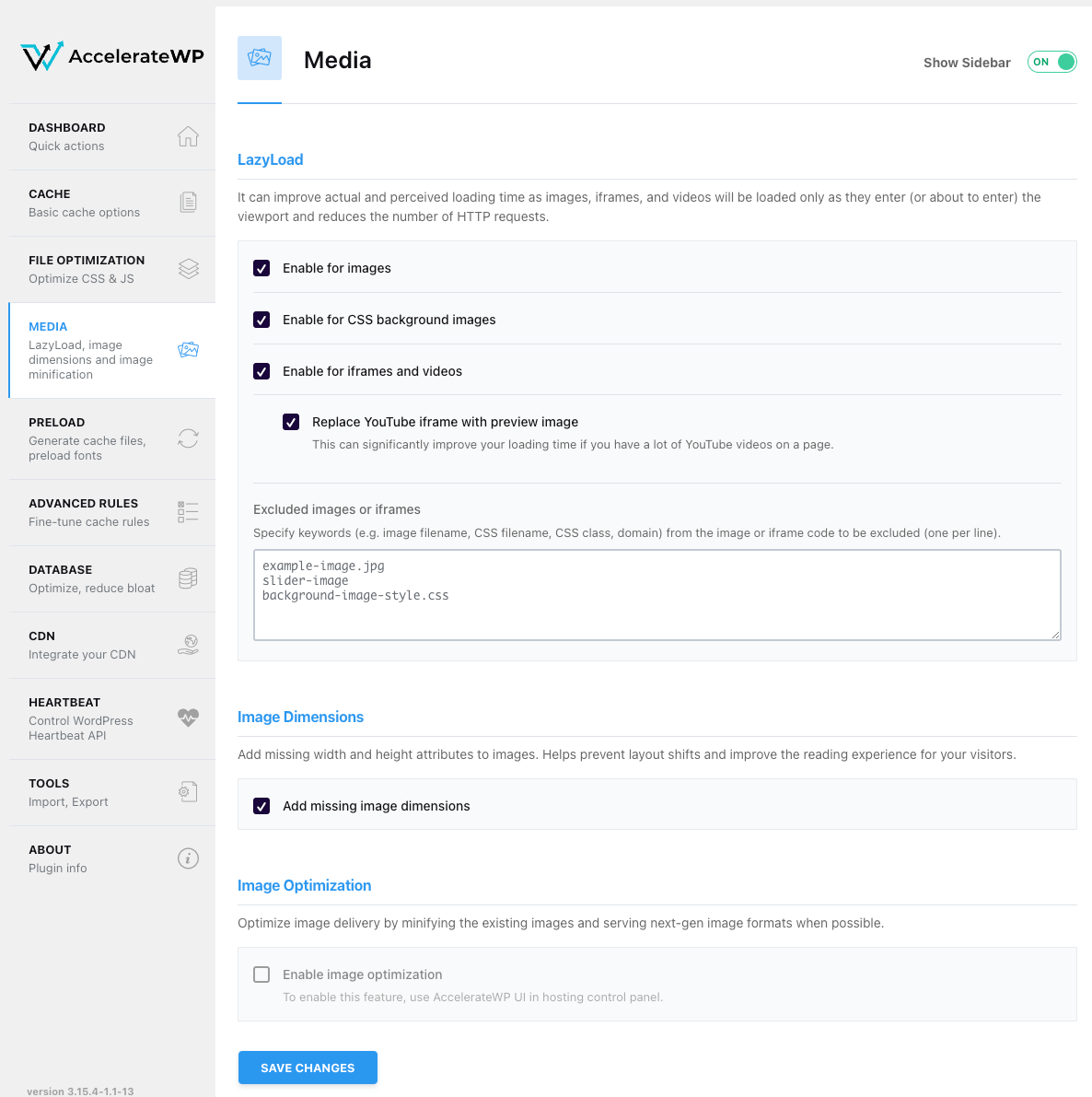
Go to the Media section.
Enable the options Enable for images, Enable for CSS background images, Enable for iframe and videos, Replace YouTube iframe with preview image, and Add missing image dimensions.
Click the Save changes button.
Go to the Preload section.
Check the boxes Activate Preloading and Enable link preloading.
Click the Save changes button.

Main settings are now complete. Now go to the menu and choose Clear and preload cache to generate the cache for the entire site.
The cache generation process may take some time depending on the number of pages your site has, the resources allocated to your hosting package, and the site’s loading speed without cache. Therefore, we recommend carefully activating only the WordPress plugins that are absolutely necessary. Unfortunately, many WordPress plugins are poorly created and consume excessive resources. To detect such issues, we recommend using Php X-Ray.